How to manage users
A user in F-SCANT is a person you keep DIRP results for. It is not a login or a password.
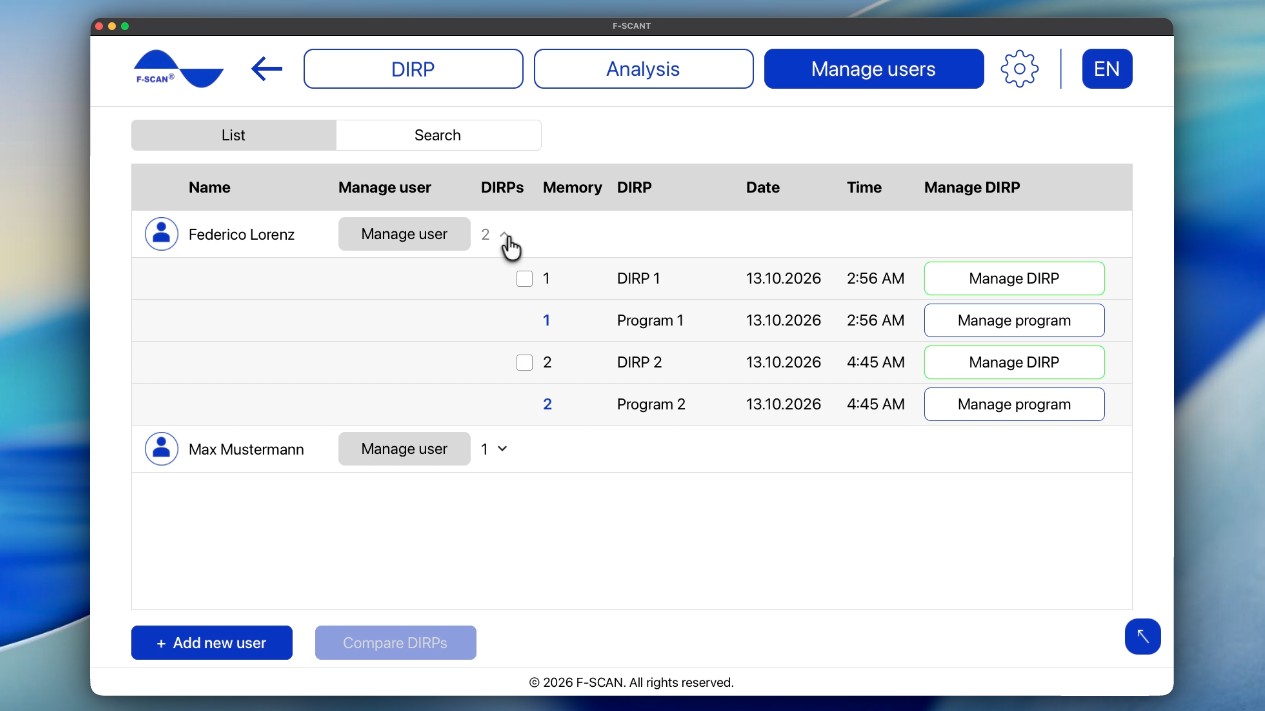
Manage users lists everyone stored in F-SCANT, with Name, DIRPs, Memory, Date and Time. Open a row to see that person’s DIRPs and program.
Figure 9. Manage users, one row expanded.
Adding and finding users
- Add new user: type a name and click Add.
- Search: type a name and confirm with the search control. The list does not filter while you type; you need to confirm the search.
You can also add a person with New user when you start a DIRP.
If you see A patient with this name already exists., that name is already in your list. F-SCANT can’t save two users under the same name, so choose a different name, for example by adding a middle initial or number.
Renaming or deleting a user
Select a user and click Manage user.
- Edit name: type the new name.
- Delete user: When you delete a user, F-SCANT asks you to confirm. Deleting means the person and all of their DIRPs and programs will be removed from F-SCANT, and this can’t be undone. If you’re sure, click DELETE.
Managing a users’ DIRP or program
On an open user row:
Manage DIRP
- Load DIRP: opens the DIRP chart (see How to analyze a DIRP).
- Analyze pathogens: opens pathogen matching for that DIRP.
- Remove DIRP from this user: deletes that DIRP from F-SCANT for this user.
- Change memory location: sets a memory number from 1 to 100 for this user.
Manage program
- Open program: opens the frequency list.
- Remove program from this user: deletes the program (but not the corresponding DIRP).
- Change memory location: sets a memory number from 1 to 100.
To send a DIRP or a program to the device, use Transfer DIRP to device or Save to Device (see create or import a DIRP and analyze a DIRP).
Comparing two DIRPs
- Open Manage users.
- Select two DIRPs.
- Click Compare DIRPs.
If nothing happens when you click Compare DIRPs, check that exactly two DIRPs are selected.
The comparison opens as a graph. Switch to program and Switch to DIRP change the display. Export saves both DIRPs together into one CSV spreadsheet.
Video 9. Compare two DIRPs.
Video 9. Compare two DIRPs. Watch online: fscant-docs/users/
Changing a memory location
Each user can have memory numbers 1 to 100 in F-SCANT. These numbers help you find a DIRP again. They are not the same as folders on your computer.
- Click Change memory location.
- Choose a number from 1 to 100.
- If F-SCANT asks REPLACE? and tells you there is already something stored in this memory location, that number is already used for this user. Click Replace to overwrite what is there, or Cancel to keep the old item and pick another number.