Connect the F-SCAN on a Mac
You already have F-SCANT. These steps install the USB driver that came with it and connect the F-SCAN. The same driver file is used on an Intel Mac and an Apple Silicon Mac. You do not pick a processor, and you do not download a driver from the web.
You need:
- F-SCANT
- The F-SCAN, turned on and showing its home screen
- A USB cable (into the Mac, or a hub or a dock)
- The F-Code from your F-SCANT invoice
1. Install the driver included with F-SCANT
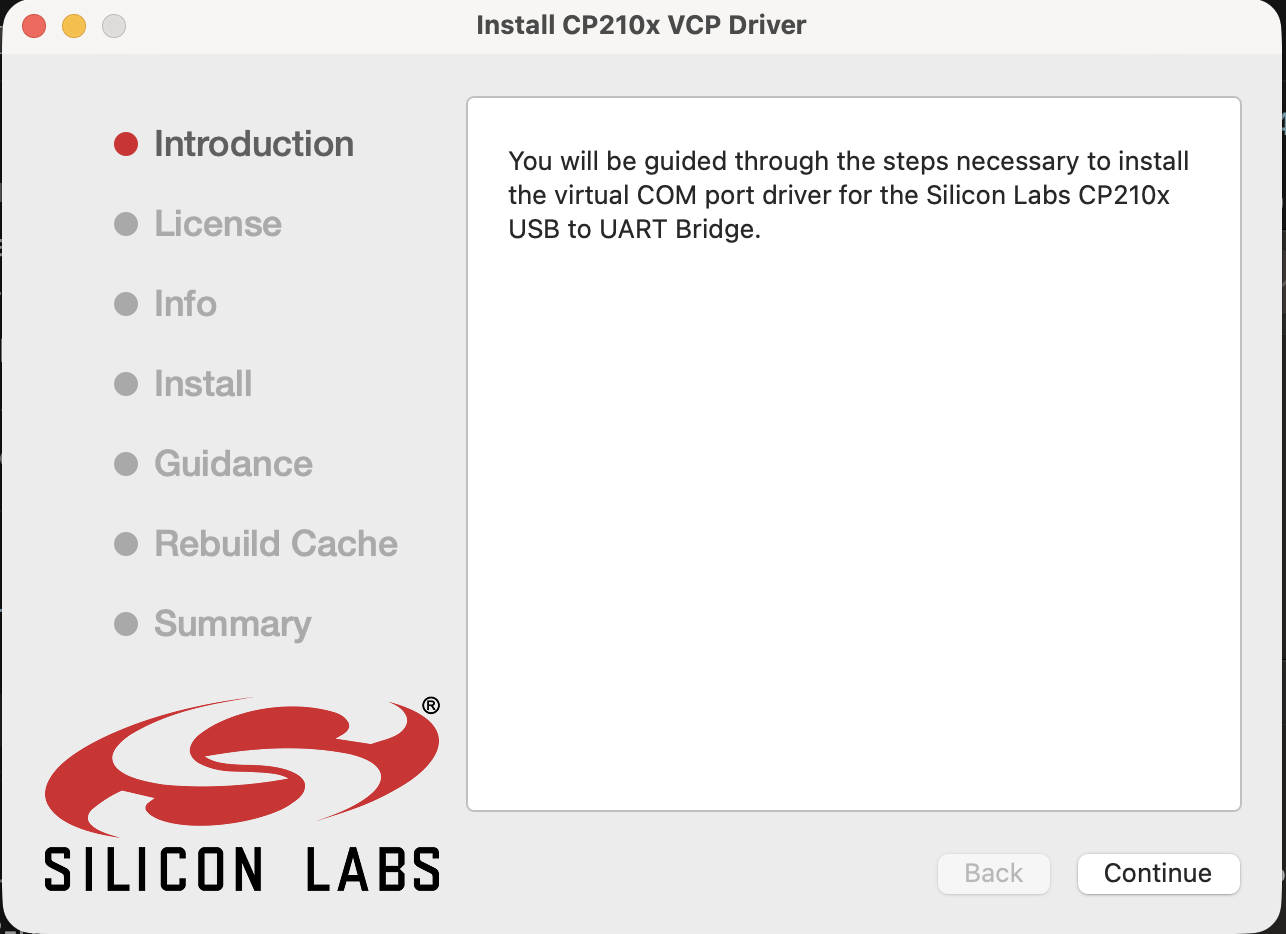
In the folder that came with F-SCANT, read SILICON-LABS-VCP-LICENSE.txt before you continue. Then open Mac_OSX_VCP_Driver.zip, open SiLabsUSBDriverDisk.dmg, and double-click Install CP210x VCP Driver.
The installer may ask for your Mac password. This is Silicon Labs CP210x VCP 6.0.3. Silicon Labs says it is for Mac OS X 10.11 and later. F-SCANT has been checked with this driver on an Intel Mac running macOS 15. That check does not cover every older or newer macOS.
Figure 4. The F-SCANT folder with the Silicon Labs installer beside the app.
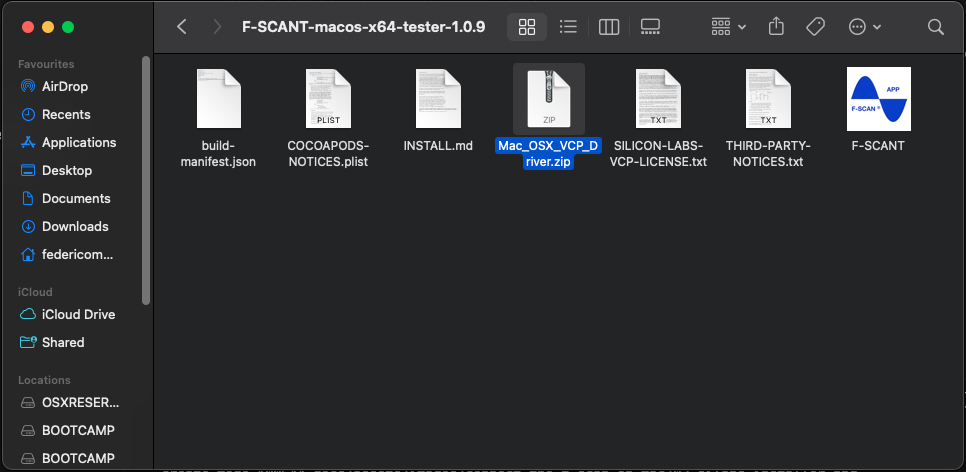
Figure 5. The Silicon Labs installer.
2. Allow the Silicon Labs extension
macOS still asks you to allow the driver after the installer finishes. On the Mac where this was last checked:
- Open System Settings → General → Login Items & Extensions.
- Under Extensions, open Driver Extensions (it lists
com.silabs.cp210x). - Turn on CP210xVCPDriver. Enter your Mac password if asked, then click Done.
A newer macOS may use a slightly different name for that panel. Use the video below.
No restart was needed on that Mac.
Video 1. Enable the Silicon Labs driver on a Mac.
Video 1. Enable the Silicon Labs driver on a Mac. Watch online: fscant-docs/connect-mac/
If macOS also shows a separate button to allow system software from Silicon Labs, allow it.
3. Plug in the F-SCAN
Turn the F-SCAN on and leave it on its home screen. Plug the USB cable into the Mac or using a hub or a dock.
4. Connect in F-SCANT
Open F-SCANT. If macOS says the developer cannot be verified, use Apple’s steps to open that app anyway: Open Anyway. Do not turn off the security check for every app.
Click Connect. If F-SCANT asks for an F-Code, enter the code from your F-SCANT invoice. When the panel says Connected and shows a serial number and a version, you are done. The connect flow is also shown in Video 2 on How to connect the F-SCAN.
If Connect does not succeed
Check these before you try again:
- The Silicon Labs extension is turned on.
- The cable is plugged into the Mac, or into a hub or a dock.
- The F-SCAN is on and showing its home screen.
- The F-Code matches the invoice.
A wrong F-Code shows ERROR: Wrong F-Code entered. Please try again!