How to create or import a DIRP
Needs F-SCAN
DIRP stands for Dual Integration Resonance Procedure and is essentially a scan across a range of frequencies. The F-SCAN sends each frequency in turn and F-SCANT draws a graph of the answers.
The scan runs from a lower frequency (Fmin) to an upper frequency (Fmax), in steps of Delta F.
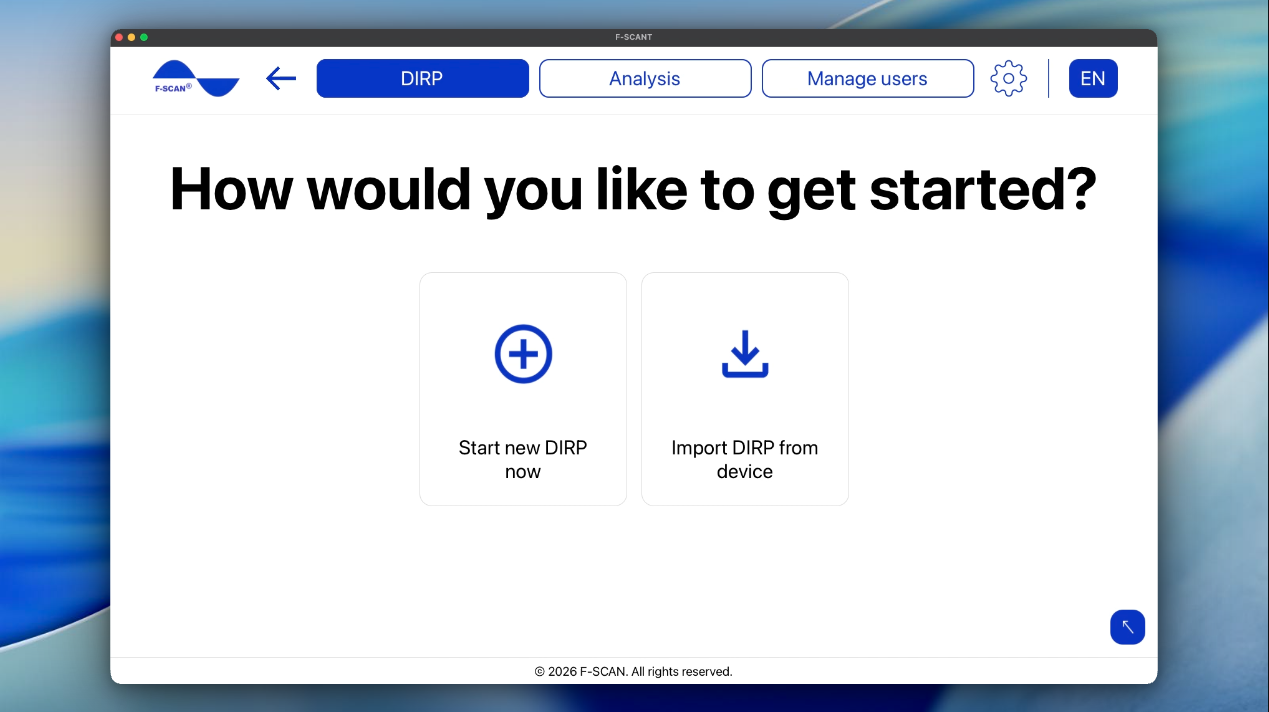
After clicking Create or import DIRP on the home screen, or DIRP in the menu bar at the top of your screen, you can select how to get started:
- Start new DIRP now: run a new DIRP from F-SCANT
- Import DIRP from device: import a DIRP that is already on your F-SCAN device
Figure 6. DIRP start: Start new DIRP now or Import DIRP from device.
Starting a new DIRP
- Select a user, then click Continue.
- Select a frequency range, then continue.
- Click Start on the DIRP chart.
Selecting a user
Select user lists the people already stored in F-SCANT. Click a name, or click New user to add someone, then Continue.
Video 4. Create a new user, then start a DIRP.
Video 4. Create a new user, then start a DIRP. Watch online: fscant-docs/dirp/
Selecting a frequency range
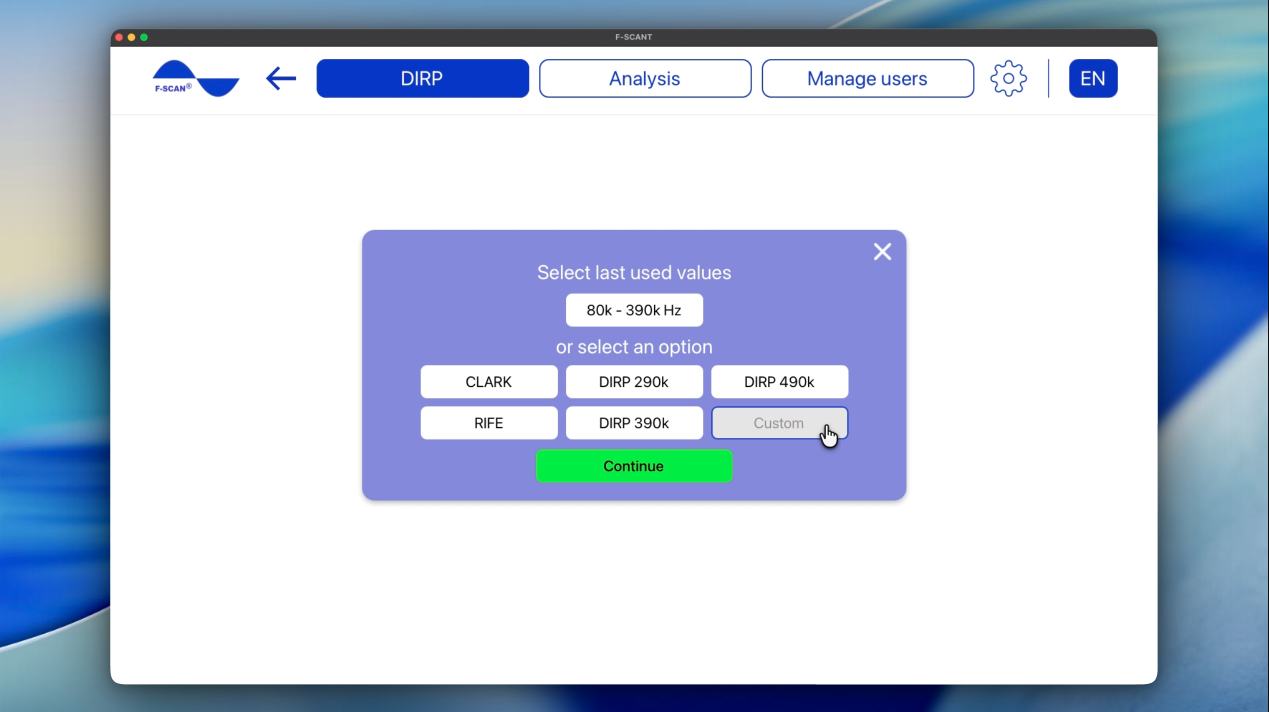
The range screen offers:
- Select last used values: the last Fmin, Fmax and Delta F you used in F-SCANT (the first time, this is 300 kHz to 450 kHz, in steps of 150 Hz)
- or select an option: ready-made ranges CLARK, RIFE, DIRP 290k, DIRP 390k, DIRP 490k
- Custom: type your own Fmin, Fmax and Delta F
Fmin is where the scan starts. Fmax is where it ends. Delta F is the gap between one frequency and the next. The DIRP mode field shows AUTO or FAST for that range.
Note: Fmin must be lower than Fmax. You can set Fmin from 50 Hz, Fmax up to 2 MHz, and Delta F from 1 Hz to 10 000 Hz. If a value is outside those ranges, F-SCANT will show an error. Please correct the number to continue.
Figure 7. Frequency range: last used values, presets, and Custom.
Video 5. Choose a custom frequency range.
Video 5. Choose a custom frequency range. Watch online: fscant-docs/dirp/
Before starting the DIRP
Set up the F-SCAN for a DIRP as in the device instruction manual (sensor on the output shown on the device, person connected). F-SCANT starts the scan and stores the graph. It does not replace the sensor setup on the device.
Running a DIRP
Once you’ve set up your device, click Start.
The chart will show the scan from Fmin to Fmax, whereas:
- Green bars are the answers at each frequency (MV is how high each bar is).
- The lilac-colored line is the clipping level (Clip). Bars above this line count as HITS.
- CV is a background reading for the person.
- The zooming function (- / + ) makes the bars look taller or shorter for easier reading. It does not change how many HITS there are.
Wait until the graph reaches Fmax and the status shows Completed. The DIRP will automatically be saved both on F-SCANT and on your device.
Video 6. Running a live DIRP.
Video 6. Running a live DIRP. Watch online: fscant-docs/dirp/
If you want a different set of HITS, you can move the clipping level by entering a value between 0 and 100 in the DIRP settings in the gray box on the right of the chart. While using F-SCANT, please only use the software (not your F-SCAN device) to manually move the clipping level. Save DIRP appears when the clipping level is different from the one already saved.
If you stop the scan before it reaches Fmax, a message asks whether you really want to stop. Stopping early means the scan is incomplete, and F-SCANT can’t save partial results. So only stop if you’re happy to discard this DIRP. If you’d rather keep it, choose Stay and the scan carries on.
If you switch to another menu via the top menu bar while a DIRP is still running, you will get the same choice. Stay keeps you on the chart. Stop or Leave leaves the scan.