How to connect the F-SCAN
After Welcome to F-SCANT APP!, F-SCANT asks: Do you want to connect your device?
Figure 1. First connection question with Yes and No.
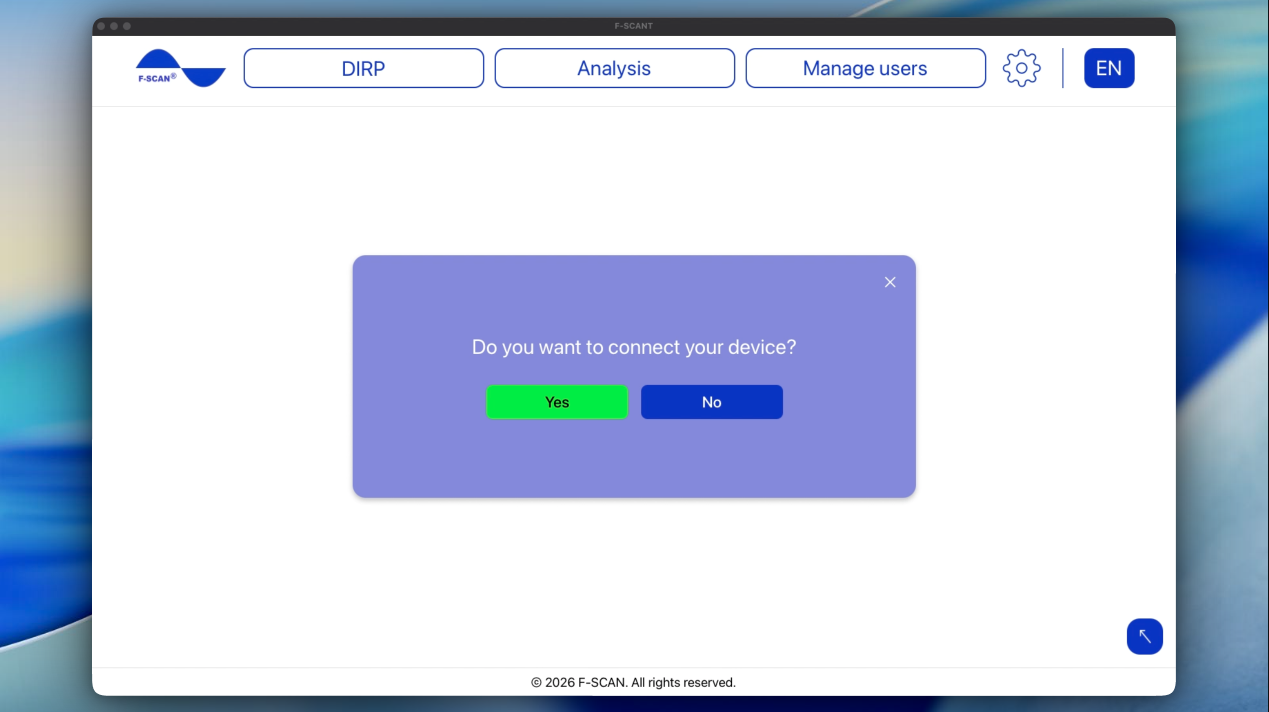
- Yes starts the connection steps.
- No brings you to the home screen. You can always connect later, using the device panel in the bottom right.
Connecting the device
Needs F-SCAN
You need:
- F-SCANT, installed (see How to install F-SCANT)
- The F-SCAN, switched on, showing its home screen
- A USB cable
- The F-Code from your F-SCANT invoice
Plug the USB cable into a USB port on the computer itself. Do not plug it into a USB hub (a small box that turns one port into several) or into a docking station or a monitor that has extra USB ports. Those extras often stop the computer from recognizing the F-SCAN.
- Switch the F-SCAN on and leave it on its home screen.
- Plug in the USB cable as described above.
- Click the Connect button in the F-SCANT software.
- If F-SCANT shows Please enter your F-Code, type the code from the invoice and click Submit.
The F-Code is on the F-SCANT APP invoice. If you cannot find it, please contact TB-Electronics.
When the panel shows Connected and a serial number and a version, you are done. The first successful connection also shows Connection succeeded! before bringing you to the home screen.
Video 2. Connecting the device.
Video 2. Connecting the device. Watch online: fscant-docs/connect/
On a Mac, detailed USB driver steps are in Connect the F-SCAN on a Mac.
If connection does not work
Try Connect again after you have checked the points below.
If nothing happens, or the panel stays on Connecting…:
- On a Mac, make sure the Silicon Labs helper is installed and allowed (see install and Connect on a Mac).
- Plug the cable into the computer itself, not a hub, dock, or monitor (see above).
- The F-SCAN must be on, showing its home screen.
If you see ERROR: Wrong F-Code entered. Please try again!, the code you typed does not match this F-SCAN. F-SCANT checks the code against the invoice for that device. Type the F-Code again from the invoice. If it still fails, please contact TB-Electronics.
The device panel
The device panel is the blue box at the bottom right of your screen. It is intended to always give you the status of your device; connected or disconnected. If connected, further relevant information is shown:
- Device: Name of the connected F-SCAN device
- Serial: Serial number of the F-SCAN
- Version: Version of the F-SCAN
- Timer: If you’ve set a timer on your device after which your F-SCAN should automatically switch off, this is displayed here. For ideal use with F-SCANT, we recommend turning off the timer from the device settings.
Click Disconnect when you want to unplug. F-SCANT does not reconnect by itself if you unplugged the cable or switched the F-SCAN off. When the device is ready again, click Connect.
You can expand and collapse the panel using the white “up” and “down” arrows.
Video 3. Expand and collapse the device panel.
Video 3. Expand and collapse the device panel. Watch online: fscant-docs/connect/
The home screen
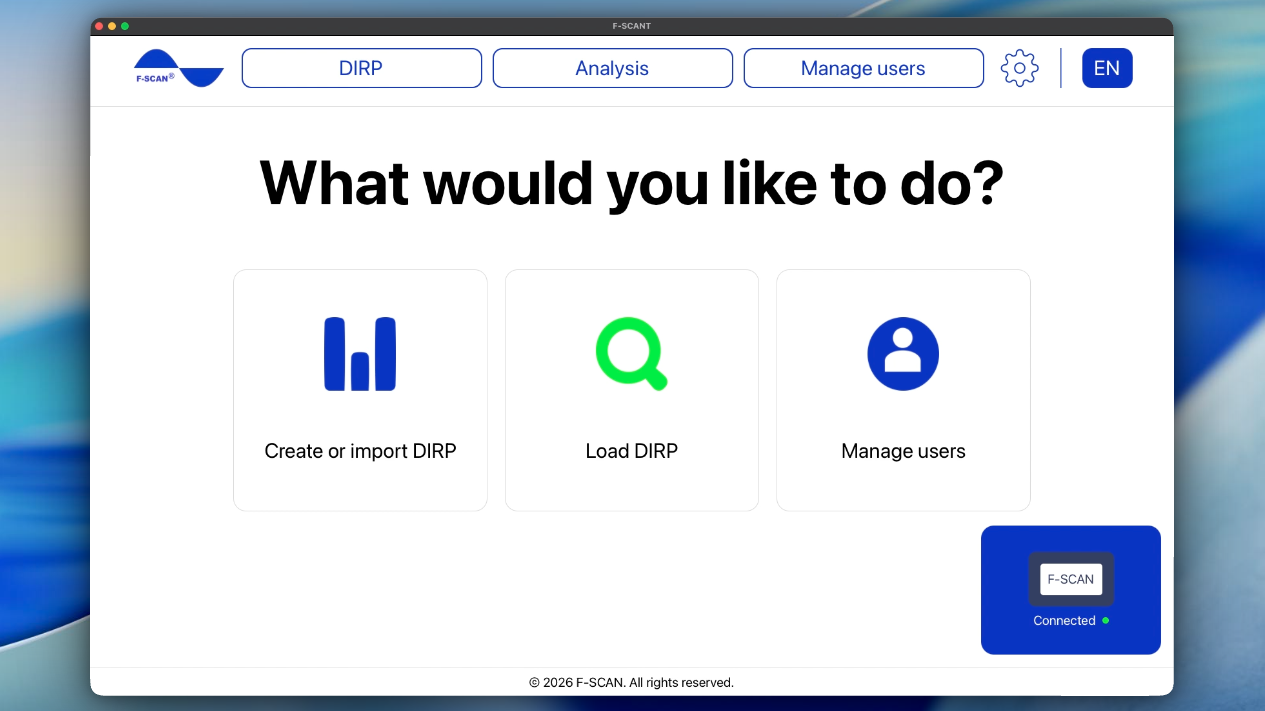
The home screen provides three options: Create or import DIRP, Load DIRP, and Manage users.
Figure 2. Home screen, F-SCAN not connected.
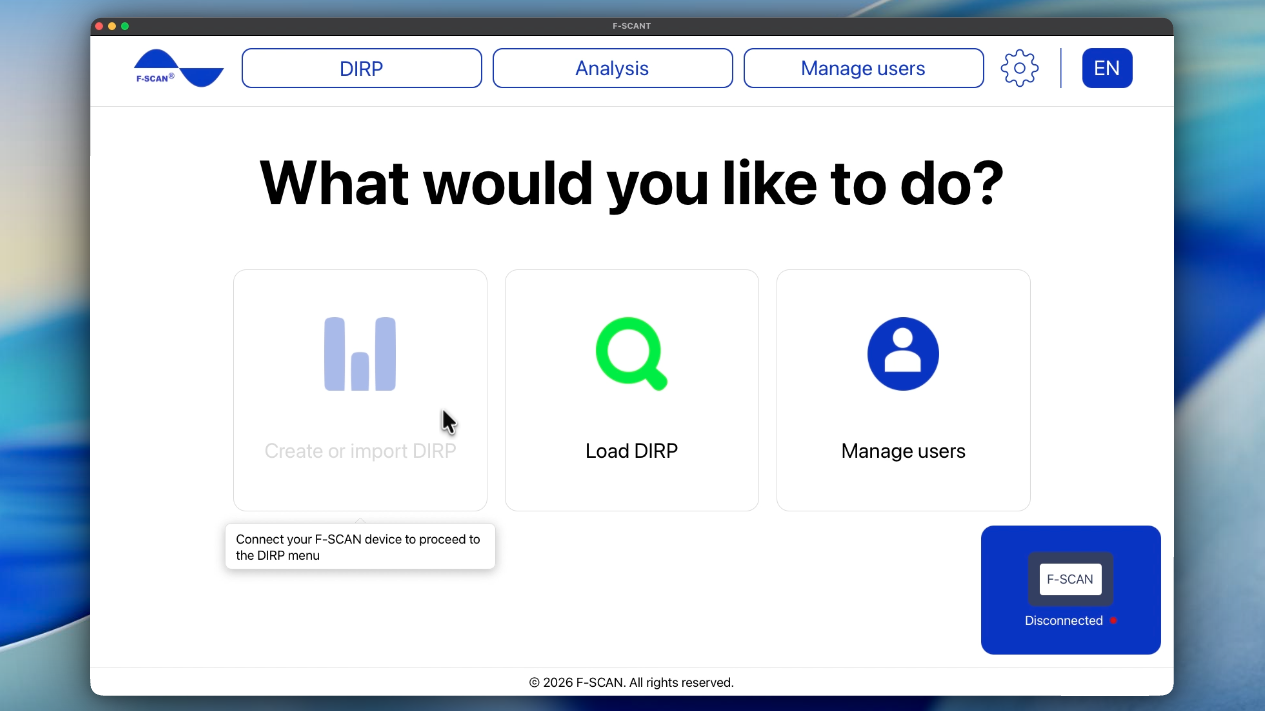
Figure 3. Home screen, F-SCAN connected.