How to analyze a DIRP
How to load a saved DIRP
- Click Load DIRP on the home screen, or Analysis in the top bar.
- Select the user, and then the DIRP you want to analyze.
- The saved chart opens.
You can open the same chart from Manage users, Manage DIRP, then Load DIRP.
If you see Please select a user or Please select a DIRP, nothing is chosen yet. Pick a user and a DIRP from the lists, then continue.
Video 7. Open Analysis and load a DIRP.
Video 7. Open Analysis and load a DIRP. Watch online: fscant-docs/analysis/
On the chart, Match pathogens and Open program use the clipping level already saved.
How to read the chart
The chart is the same as during a live scan:
- CV (Conductivity Value): a personal baseline value for the person being analyzed. For useful results it should be between 5% and 25%.
- MV (Measured Value): how strong a frequency registered. It shows as a green bar, and the taller the bar, the stronger the reading.
- HITS: the bars above the CLIP line. These are the strongest results of the scan.
- ZOOM: use + to make the graph taller and − to make it shorter. Make it taller when the bars are too small, and shorter when they are too big.
- CLIP / Clipping level: the line that decides which bars count as HITS. Once the scan finishes, AUTO places it for you. If you want more or fewer HITS, move the line down or up.
The arrows next to the DIRP number open the previous or next saved DIRP for that user.
How to match pathogens
Match pathogens compares your HITS with the pathogen list stored in F-SCANT. For each pathogen on the list, it checks whether that pathogen’s frequency is close to one of your HITS. If it is, the pathogen appears in the table as a possible match.
How close is “close enough” is set by Match ± Hz. The usual window is 1000 Hz. A wider window gives you more possible matches, a narrower one gives you fewer. You can change the window on the results screen (not in Settings).
To see the matches:
- Open a saved DIRP, or finish a new one.
- Click Match pathogens.
- Read the table. Change Match ± Hz if you want a wider or narrower window.
- Choose what to do next:
- Export saves a CSV spreadsheet.
- Open pathogen database lets you browse the full list. You can search by pathogen, sort from A to Z or by frequency. Selected rows can be added to the analysis table with the button Add to analysis.
- Save program creates and stores a program based on the rows you selected.
Please note: the pathogen table is only a comparison with the stored list. It is not a medical diagnosis.
Video 8. Match pathogens and browse the pathogen database.
Video 8. Match pathogens and browse the pathogen database. Watch online: fscant-docs/analysis/
How to open and save a program
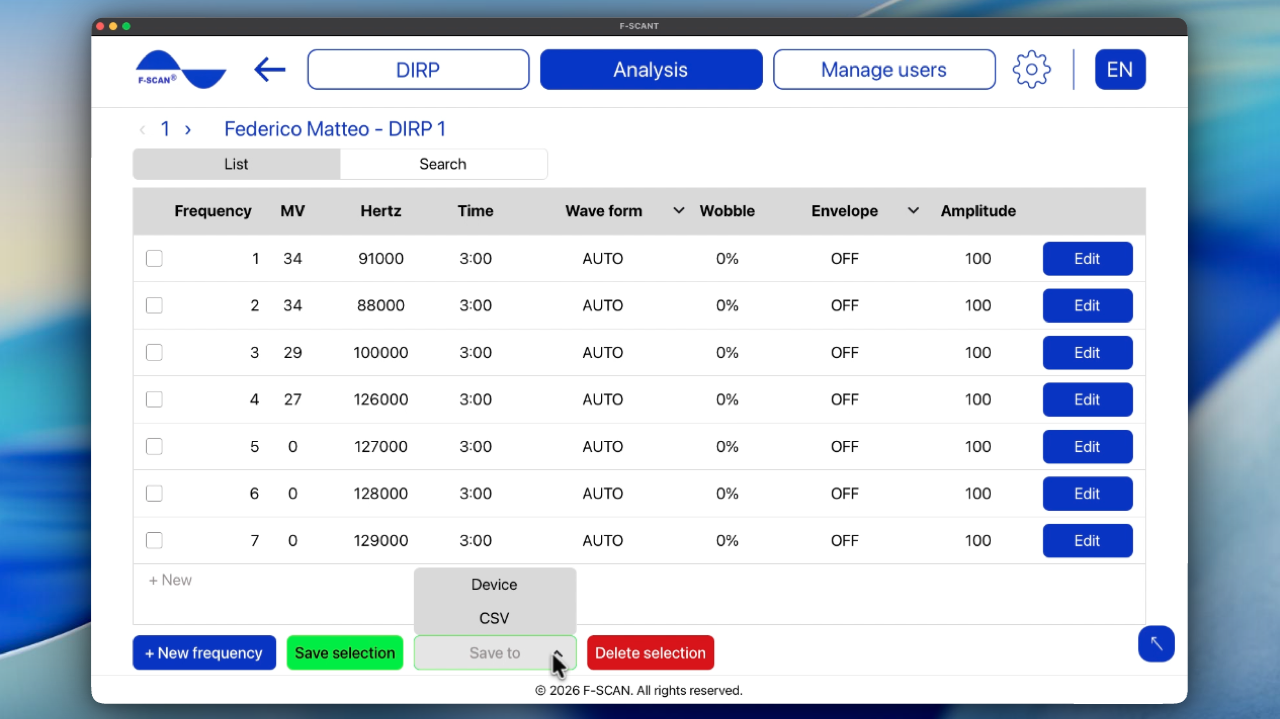
A program is the list of frequencies taken from the HITS of a DIRP (wave form, time, wobble, envelope, and amplitude). Changing a program does not change the original DIRP graph.
- Open the program in one of two ways: click Open program on the DIRP chart after DIRP is completed, or use Manage program in Manage users.
- Edit the rows if you need to. You can change Wave form, Time, Wobble, Envelope, and Amplitude. Click + New frequency to add a row.
- Click Save to and choose where to save it:
- CSV saves the selected frequencies as a spreadsheet file.
- Device sends the program to the F-SCAN (Needs F-SCAN). F-SCANT does not start the output. Press START on the F-SCAN when you want to run it.
Figure 8. Program list with Save to Device and CSV.